
Describe the job once and let Portal 360 run it every time
Turn a plain-English request into an automation, ask the Pi assistant about your clients, tasks and inbox, and let AI draft tasks for you to review.
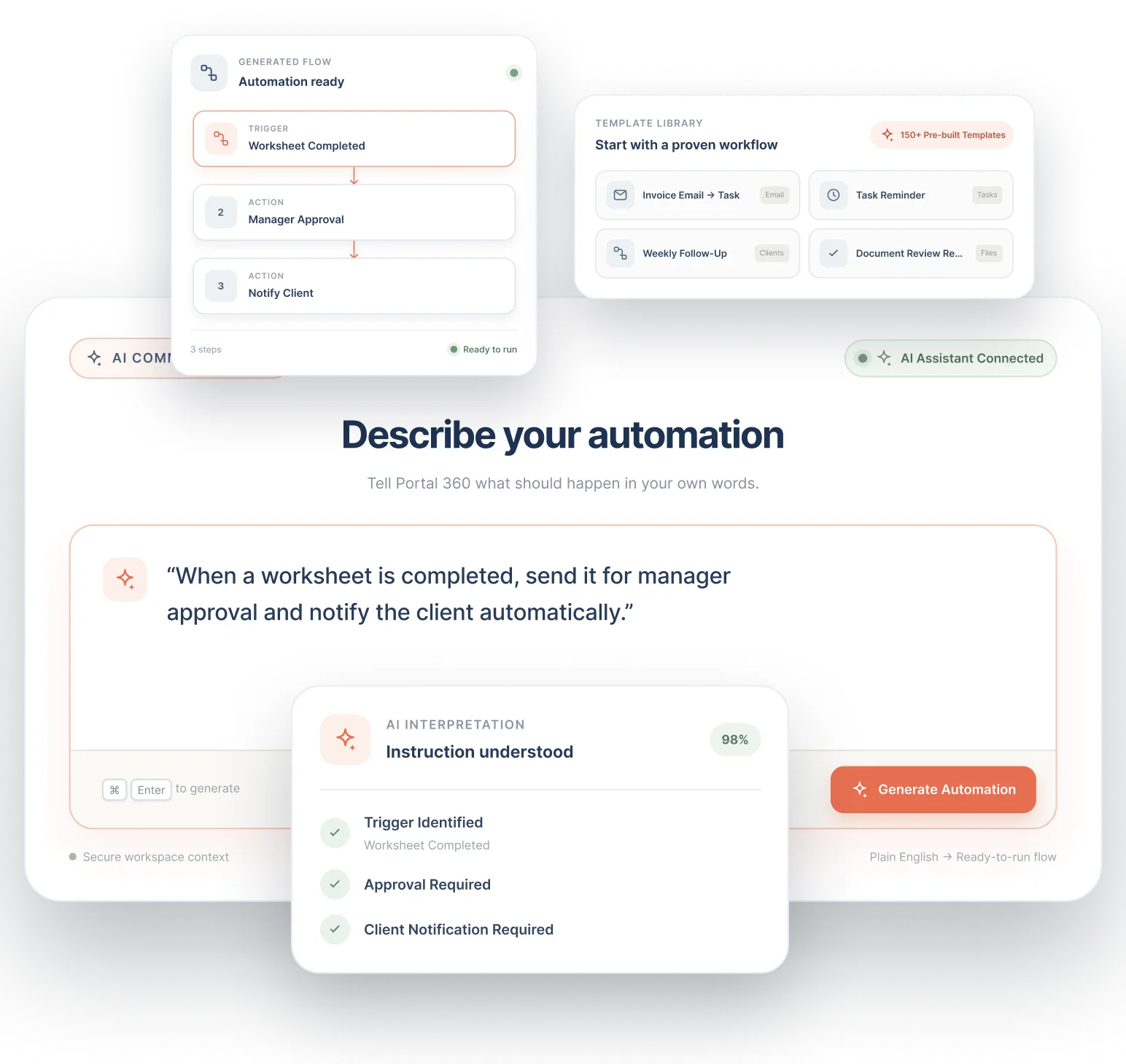
- Plain-English automations
- Pi assistant
- AI Auto-fill for tasks
- Run history for every flow
7-day free trial on Starter, Professional and Advanced. Set up in minutes.
One feature that replaces the automation add-on and the admin it was built for
Practices pay for an automation tool, then still do repeat admin by hand. Portal 360 builds automations on your own client data.
- Separate automation platform
- Manual repeat admin
- Searching several screens for answers
Without it
- Repeat admin done by hand, every week
- An extra automation subscription to connect the tools
- Writing task descriptions from scratch
- Hunting through screens to answer a simple question
- No record of what ran and when
With Portal 360
- Describe the job and get a flow you can review
- Automations that work on your own client data
- AI drafts the task description for you to check
- Ask Pi about tasks, clients, inbox, files or meetings
- Status, health and run history for every flow
Command
Say what should happen, in plain English
Describe the job on the Command page, or click an example, and the AI builds a flow preview. Save it, activate it or edit it before it runs.
- Plain-English requests
- A preview you can edit first
- Save, activate or adjust
- Three ways to build: canvas, AI or step by step
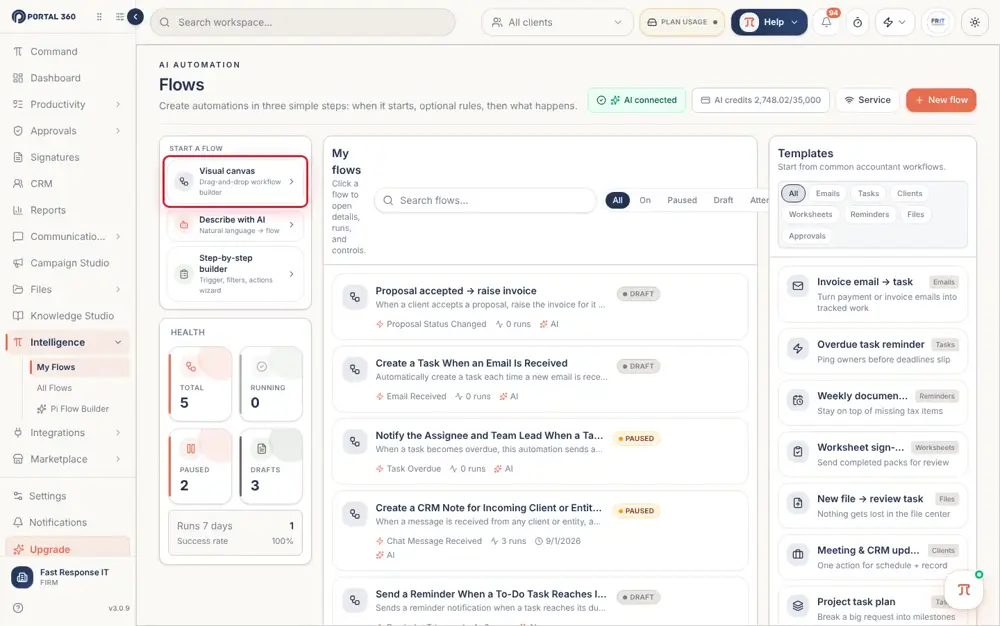
My Flows
See every automation, its health and its history
My Flows lists every automation with its status, a health summary and ready-made templates. Open a flow to see its diagram and run history. A flow only runs when it is switched on.
- Status and health at a glance
- Diagram and run history
- Ready-made templates
- Draft and paused flows stay safely off
Flow: new client welcome
OnTrigger
Client added
Action
Create onboarding tasks
Action
Send welcome email
Last run: today · Healthy
See it with your own clients.
7-day free trial on Starter, Professional and Advanced. Set up in minutes.
Pi assistant
Ask a question, get an answer from your own data
Click the Pi button on any page and ask about your tasks, clients, inbox, files or meetings.
- Available on every page
- Answers from your workspace
- Tasks, clients, inbox, files and meetings
- No hunting through menus
Ask Pi
PiWhich clients have overdue tasks this week?
Three clients have overdue tasks:
- Harbour & Co: BAS review
- Kestrel Logistics: payroll check
- Rivera Family Trust: return sign-off
AI Auto-fill
A first draft of every task in seconds
Type a task title and click AI Auto-fill. The AI drafts the description and details for you to review, so creating tasks stops being a typing job.
- Draft from just a title
- You review before saving
- Consistent task descriptions
- Credits shown at the top of the Flows page
Onboard new client
AI Auto-fill- Collect ID and engagement letter
- Set up folders and portal access
- Connect the ATO and accounting software
- Schedule the kick-off call
Everything included, nothing to bolt on
All of this is part of Portal 360, on the same client record as the rest of your practice.
Command page
Turn a plain-English request into an automation.
Three ways to build
Visual canvas, describe with AI, or step-by-step builder.
My Flows
Every automation with status, health and templates.
Run history
See what ran, when, and what it did.
Pi assistant
Ask about tasks, clients, inbox, files or meetings.
AI Auto-fill
Draft task descriptions and details from a title.
Templates
Start from a ready-made flow instead of a blank page.
Safe by default
Draft and paused flows are saved but never run.
Credits you can see
AI actions use credits, shown at the top of the Flows page.
How it works
- 1
Describe the job
On the Command page, say what should happen in plain English.
- 2
Review the flow
Check the preview and edit it if needed.
- 3
Switch it on
A flow only runs when it is On.
- 4
Watch it work
Open My Flows to see health and run history.
- 5
Ask Pi anything
Use the Pi button for quick answers about your practice.
Part of one platform, not another tab
Everything here works with the rest of Portal 360, so the work you do in one place shows up where it matters.
Frequently Asked Questions
You describe what should happen in plain English, or click an example, and press Send. The AI builds a flow preview that you can save, activate or edit.
Hand the repeat admin to Portal 360. Start your free trial.
Describe your first automation and see it running on your own client data.
7-day free trial on Starter, Professional and Advanced. Set up in minutes. Or talk to our team.