
Every client conversation, in one inbox your whole team can see
Connect Gmail or Outlook, link emails to the client they belong to, reuse templates and send campaigns to groups of clients, without leaving Portal 360.
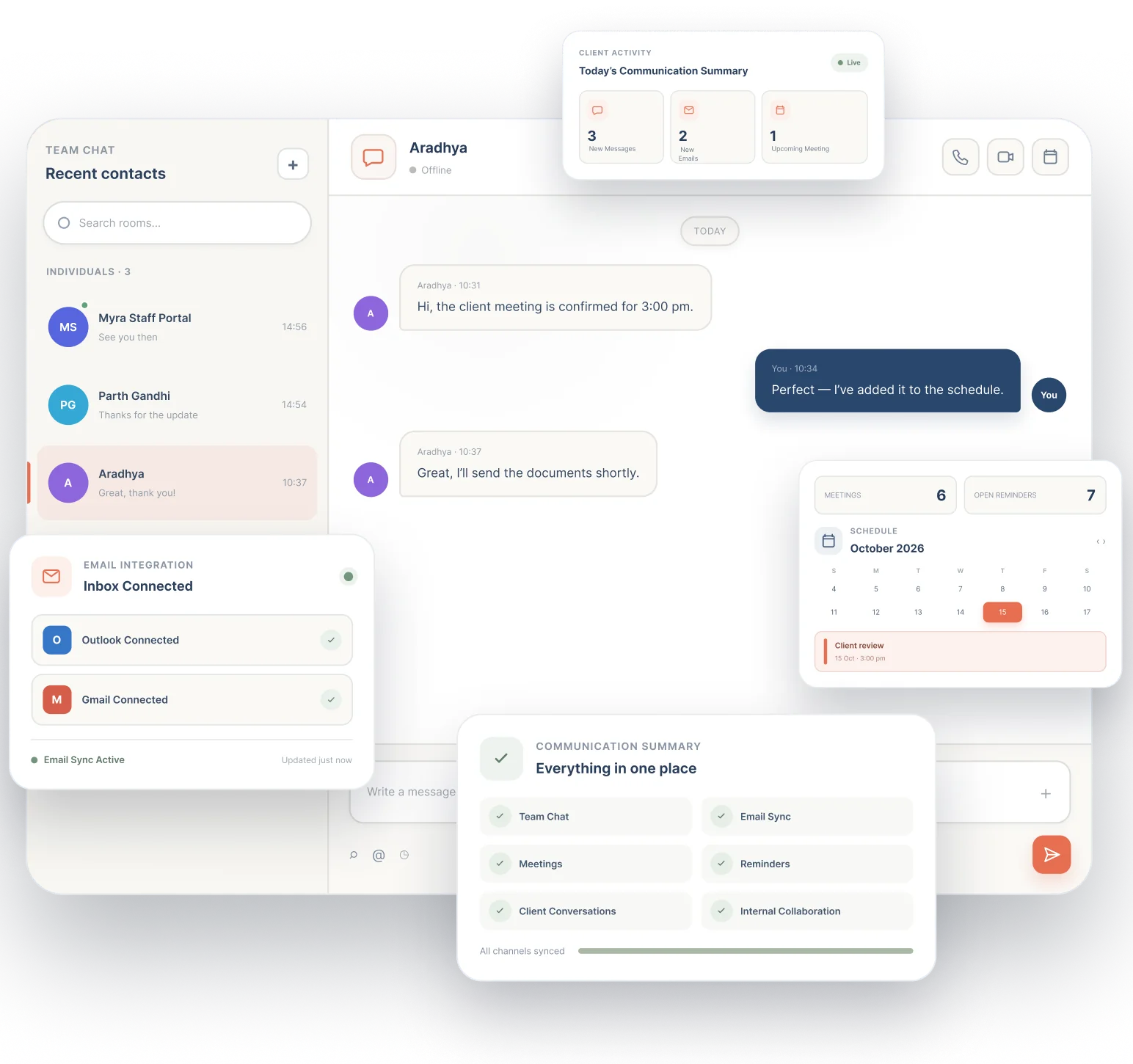
- Gmail and Outlook
- Shared inboxes
- Email templates
- Campaign Studio
7-day free trial on Starter, Professional and Advanced. Set up in minutes.
One feature that replaces the shared mailbox and the mailing tool
Client email usually lives in a few personal inboxes, with bulk mail sent from yet another tool. Portal 360 gathers it where the client record is.
- Email forwarding to colleagues
- Separate email marketing tool
- Copy-pasted email templates
Without it
- Client emails stuck in one person's inbox
- Forwarding messages so a colleague has context
- Rewriting the same email every time
- A separate tool to send one email to many clients
- No link between the email and the client file
With Portal 360
- Shared inboxes the right team members can read
- Emails sent to a client link to their record
- Templates your team can share or keep private
- Campaign Studio sends to groups of clients
- Everything on the client file next to their tasks and documents
Shared inbox
Read all your mail in one place
Connect Gmail or Outlook and read mail from every connected mailbox in one view. Choose who can see each mailbox when you connect it: private to you, or a shared inbox that several people use.
- Gmail and Outlook, signed in with Google or Microsoft
- Private by default, shared when you choose
- Inbox, Sent, Drafts, Trash and Spam folders
- Saved views for Scheduled, Tasks and Starred
Inbox
2 mailboxes- Re: Activity statement dueHarbour & Co · linked to clientShared
- Can you send last year's return?Rivera Family Trust
- Payroll questionKestrel LogisticsTask
Linked to the client
Never lose the context of a conversation
Messages sent to a client are linked to that client's record, so anyone who opens the file sees the history. Tag, share and star messages, add your email signature and use templates from the same toolbar.
- Emails to clients link to their record
- Tags, stars and shared messages
- Compose from the right mailbox with Cc and Bcc
- Signatures added in one click
Harbour & Co Pty Ltd
- Sent: Your BAS is ready to reviewToday · Priya
- Received: Bank statements attachedYesterday · Marcus
- Sent: Engagement letter for signatureMon · Priya
See it with your own clients.
7-day free trial on Starter, Professional and Advanced. Set up in minutes.
Templates
Write it once, send it every time
Save an email template with a name, subject and body. Share it with your team so everyone sends the same message, or keep it just for you.
- Shared team templates
- Private templates for your own use
- Consistent wording across the practice
- Start a new email from a template
Email template
Shared with teamSubject
Your activity statement is ready
Hi there, your activity statement is ready to review. Reply to this email or sign in to your portal to approve it.
Kind regards, Your Firm
Campaign Studio
One email to many clients, with a checklist so nothing is missed
Create a broadcast and complete four steps: subject, sender mailbox, recipients and content. Preview it, then send now or schedule it. Drafts save automatically, so you can come back later.
- Send to a client segment or a chosen list
- Preview before sending to real clients
- Schedule for the right moment
- A clear list of anything still missing
Broadcast: EOFY reminders
Draft- SubjectYour end-of-year checklist
- Sender mailboxaccounts@yourfirm.com.au
- RecipientsSegment: Sole traders (86)
- ContentTemplate designed and previewed
Everything included, nothing to bolt on
All of this is part of Portal 360, on the same client record as the rest of your practice.
Gmail and Outlook
Connect the mailboxes you already use. Sign in with Google or Microsoft to approve access.
Private or shared mailboxes
Choose the visibility when you connect, and change it later in Settings.
Shared inbox
Set up a team inbox that several people read and reply from.
Email templates
Reusable messages, shared with the team or private to you.
Linked to client records
Messages sent to a client appear on their file.
Tags and stars
Mark what matters and find it again quickly.
Scheduled and tasks views
Saved views for scheduled mail, tasks and starred messages.
Campaign Studio
Broadcast one email to many clients, now or scheduled.
ATO letters forwarded to clients
Notices pulled from the ATO go out from Portal 360 with a record on the file.
How it works
- 1
Connect a mailbox
Click Manage, choose your sync and privacy options, then sign in with Google or Microsoft.
- 2
Choose who sees it
Keep it private, or set up a shared inbox for the team.
- 3
Read, reply and link
Compose from the right mailbox. Emails to clients link to their record.
- 4
Save your templates
Create templates for the messages you send every week.
- 5
Send a campaign
Build a broadcast, preview it and send or schedule it to a group of clients.
Part of one platform, not another tab
Everything here works with the rest of Portal 360, so the work you do in one place shows up where it matters.
Frequently Asked Questions
Gmail and Outlook. You sign in with Google or Microsoft to approve access, and you should only connect mailboxes you own or are allowed to use.
Put every client conversation on the client file. Start your free trial.
Connect a mailbox and see your client email and your client records finally in the same place.
7-day free trial on Starter, Professional and Advanced. Set up in minutes. Or talk to our team.