
Every client document in the right folder, ready to share
Secure file storage with default folders for each client, instant preview, and sharing through the client portal or a protected link. Your clients' documents stop living in email attachments.
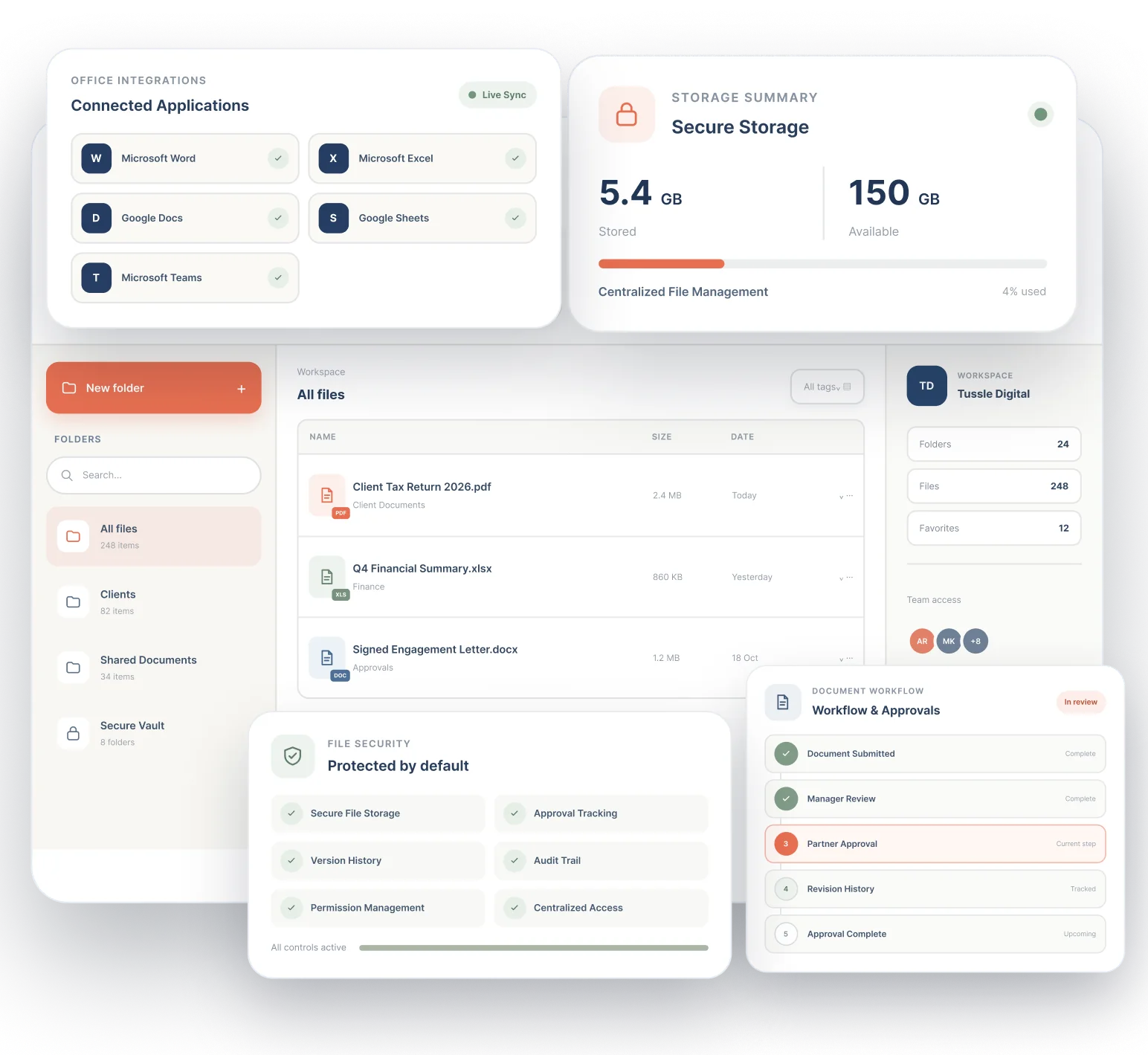
- Folder templates
- Preview without downloading
- Share by portal or link
- Drive, OneDrive, SharePoint
7-day free trial on Starter, Professional and Advanced. Set up in minutes.
One feature that replaces the file share and the attachment hunt
Files end up in shared drives, inboxes and download folders. Portal 360 stores them against the client and entity they belong to.
- Shared drive folder conventions
- File-sharing service for clients
- Emailing attachments back and forth
Without it
- A different folder structure for every client
- Documents buried in email attachments
- Downloading a file just to see what it is
- Emailing sensitive files to clients
- Not knowing who has the latest copy
With Portal 360
- Default client folders from a template
- Files stored against the client and entity
- Preview PDFs and text files in a window
- Share through the client portal or a protected link
- One place for the current version
Folders
The same tidy structure for every client
Set the sub-folders created for each client once, such as Tax, Financial Statements and Correspondence. Colour, tag and favourite folders to find the ones you use most.
- Folder templates in File Settings
- Colours, tags and favourites
- Sub-folders where you need them
- Totals at a glance in the File Center
Harbour & Co · Files
Template applied- Tax12 files
- Financial Statements8 files
- Correspondence31 files
- Engagement and signed documents5 files
Upload and preview
Drop files in and see them instantly
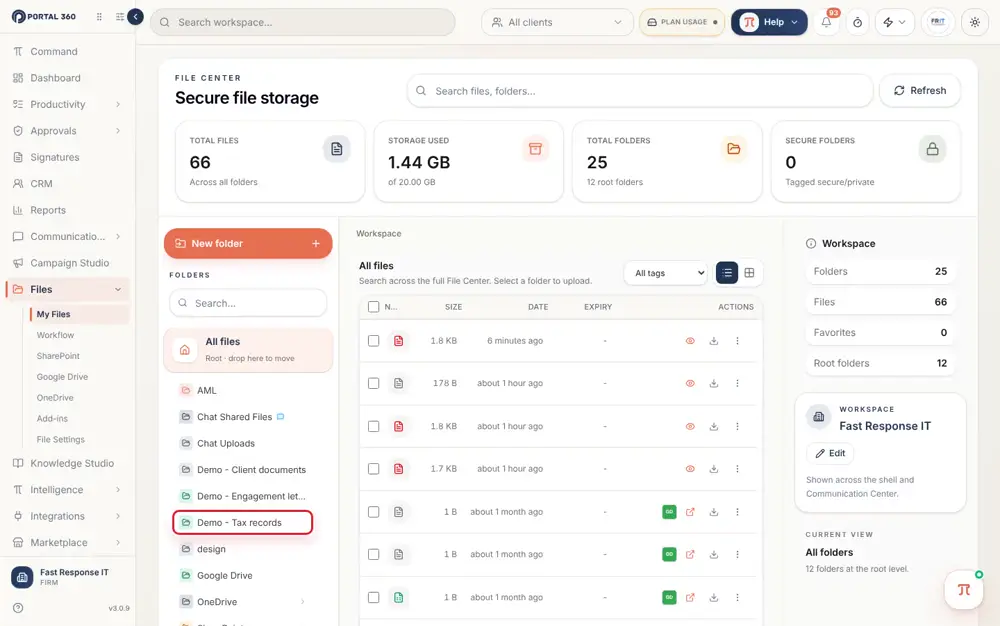
Open a folder and upload, or drag files straight in. Click the eye icon to preview PDFs and text files in a window without downloading.
- Drag and drop upload
- Preview PDFs and text files
- Files stored against the right folder
- Bring in files from Google Drive, OneDrive and SharePoint
See it with your own clients.
7-day free trial on Starter, Professional and Advanced. Set up in minutes.
Share securely
Send documents to clients without email attachments
Share a file through the client portal, or create a public link with an optional password and expiry. You decide who can open it and for how long.
- Share to the client portal
- Links with optional password
- Links with optional expiry
- Signed documents sit with the client's files
Share file
2025 Financial Statements.pdf
- Client portalHarbour & Co contactsOn
- Protected linkPassword set · expires in 7 daysCopy
Entities
Everything about the entity in one place
Entities are the companies, trusts, funds and individuals you act for. They hold tax details, banking and worksheets, and their files sit alongside.
- Tax details and banking on the entity
- Worksheets and tasks for the entity
- Contacts and relationships linked
- One profile for the whole picture
Harbour & Co Pty Ltd
Active- EntitiesCompany, family trust, 2 individuals
- Contacts3 people · 2 with portal access
- Tags and segmentsSole traders, GST quarterly
- Activity and tasks4 open tasks · last contact today
Everything included, nothing to bolt on
All of this is part of Portal 360, on the same client record as the rest of your practice.
File Center
Folders on the left, files in the middle, totals at the top.
Folder templates
Create the same sub-folders for every new client.
Drag and drop upload
Drop files straight into the folder you have open.
Instant preview
Open PDFs and text files without downloading them.
Client portal sharing
Share files with a client through their portal.
Protected links
Public links with an optional password and expiry.
Cloud imports
Bring in files from Google Drive, OneDrive or SharePoint.
Colours, tags, favourites
Organise folders the way your team thinks.
Entity profiles
Tax details, banking and worksheets on every entity.
How it works
- 1
Set your folder template
In File Settings, choose the sub-folders every client gets.
- 2
Add the client
Their folders are created for you.
- 3
Upload documents
Open a folder and upload or drag files in.
- 4
Preview and organise
Check files in the preview window, colour and tag folders.
- 5
Share with the client
Use the portal or a protected link.
Part of one platform, not another tab
Everything here works with the rest of Portal 360, so the work you do in one place shows up where it matters.
Frequently Asked Questions
Open Files, then File Settings, and use the Folder Templates tab to set the sub-folders created for each client, such as Tax, Financial Statements and Correspondence.
Give every client a tidy, secure home for their documents. Start your free trial.
Upload your first file, preview it and share it to a client portal in minutes.
7-day free trial on Starter, Professional and Advanced. Set up in minutes. Or talk to our team.